Deploying Actual on fly.io with git
Pre-requisites
There are some things we need to do before we get started though.
Fly.io Account
Create an account with fly.io. Although you are required to enter payment details, everything we do here will work on the free tier and you won't be charged.
Flyctl tool installation
-
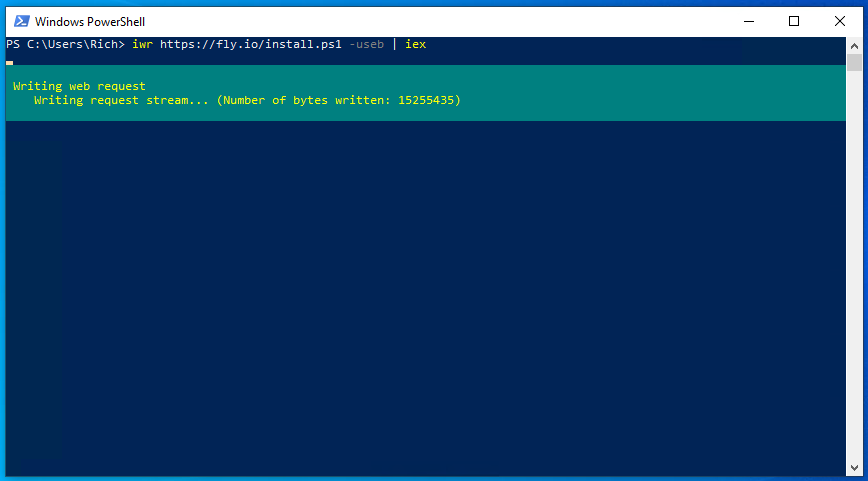
Open up Powershell on your local machine and paste the following command into the window:
iwr https://fly.io/install.ps1 -useb | iex
-
Flyctl should start installing

-
Once done you should get a message saying
Run flyctl --help to get started:


Flyctl is now installed.
Installing Git On Your Local Machine
Download git for Windows from here: https://git-scm.com/download/win
-
Identify the version that is suitable for your operating system
If you are unsure if you are running 32bit run this command in the command prompt:
wmic os get OSArchitecture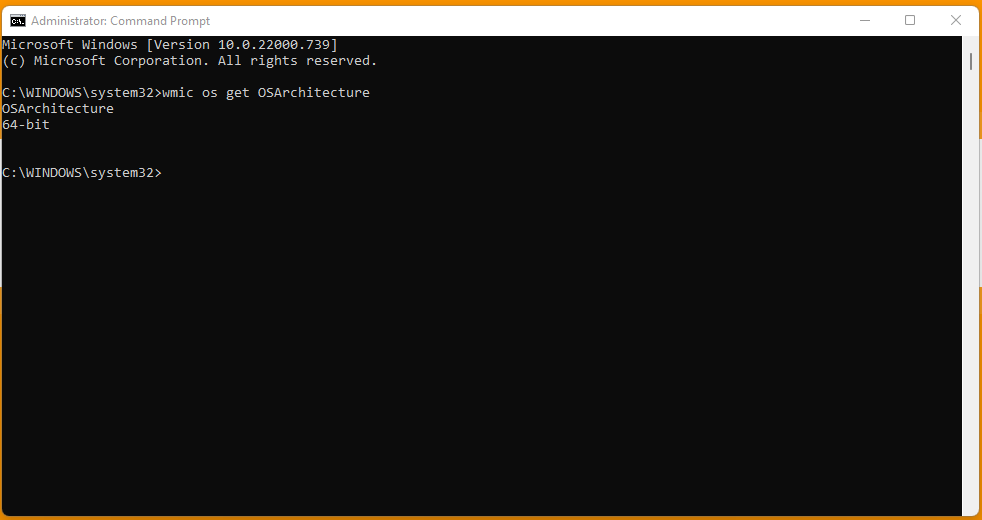
-
Download the setup file that is right for your system:

It should then start downloading:

-
Once it is done, open it up - if asked click yes that you are happy for it to make changes to your device.

-
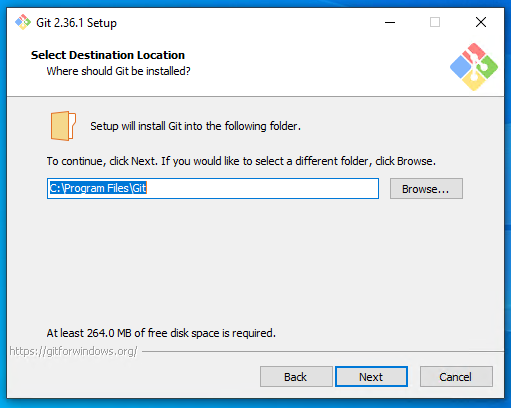
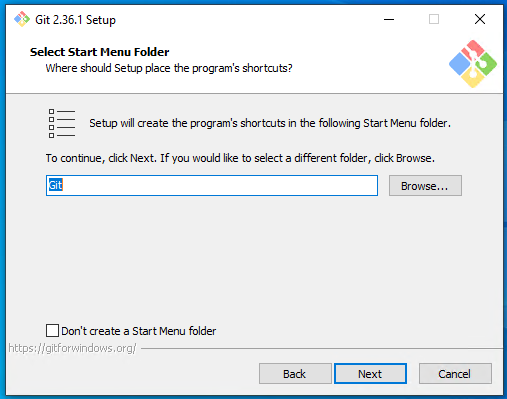
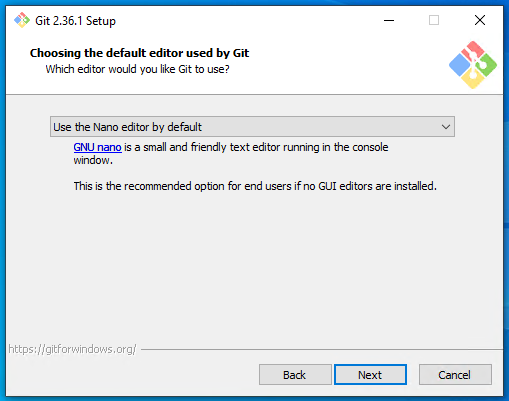
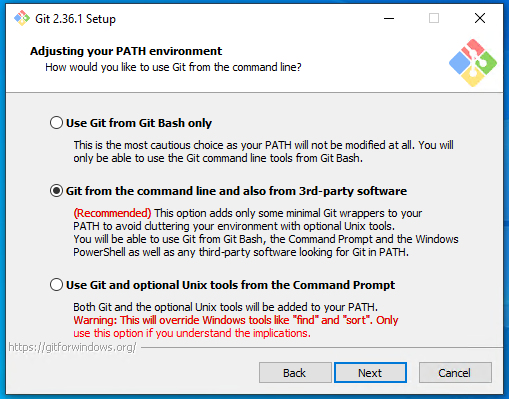
Copy the settings as they are below and click next, next...




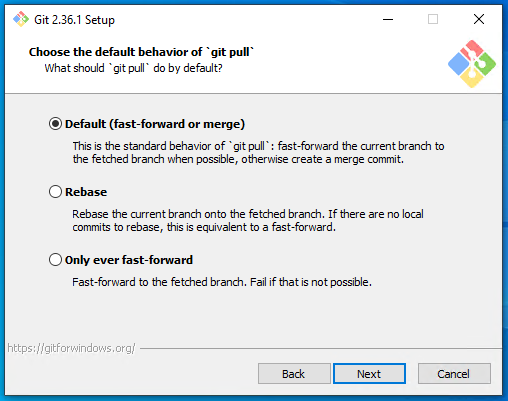

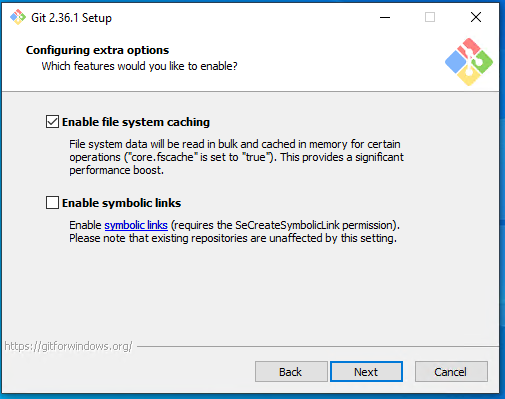

-
Then git should begin installing:

-
Open up a command prompt and type
git --versionto make sure it has installed correctly. If it has, you should see a version number as below:



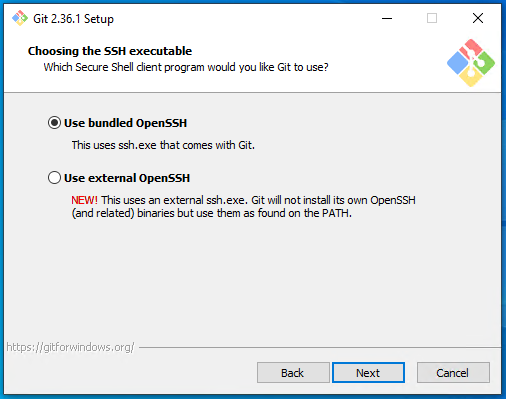


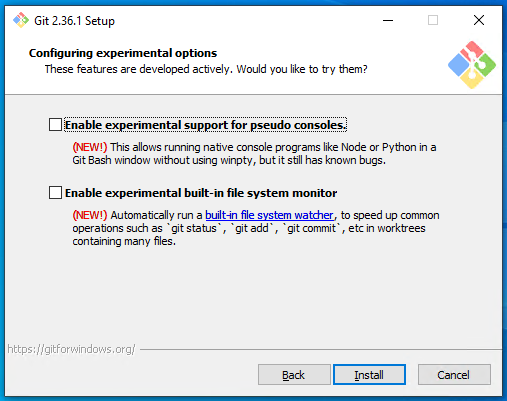
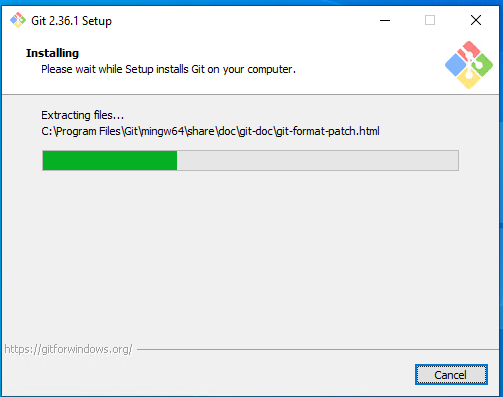

That is it, Git is now installed.
Deploying Actual
I got Actual deployed to fly.io below are the instructions I used - understandably these are for Windows only but should work (with a few tweaks) for MacOSX & Linux.
-
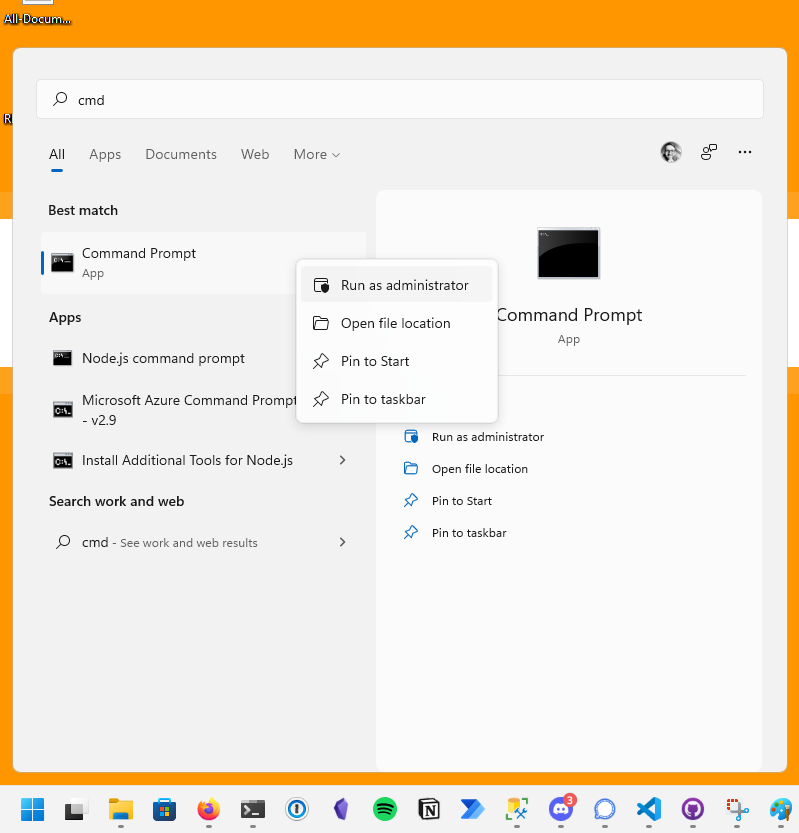
Press start (or hit the windows key on your keyboard), type cmd

when cmd appears in the search results, right click it and run it as Administrator
-
Navigate to the C:\ drive
cd C:\
-
Create a folder called github. (
mkdiris a command to make a directory)mkdir github
-
Once that is complete run this command
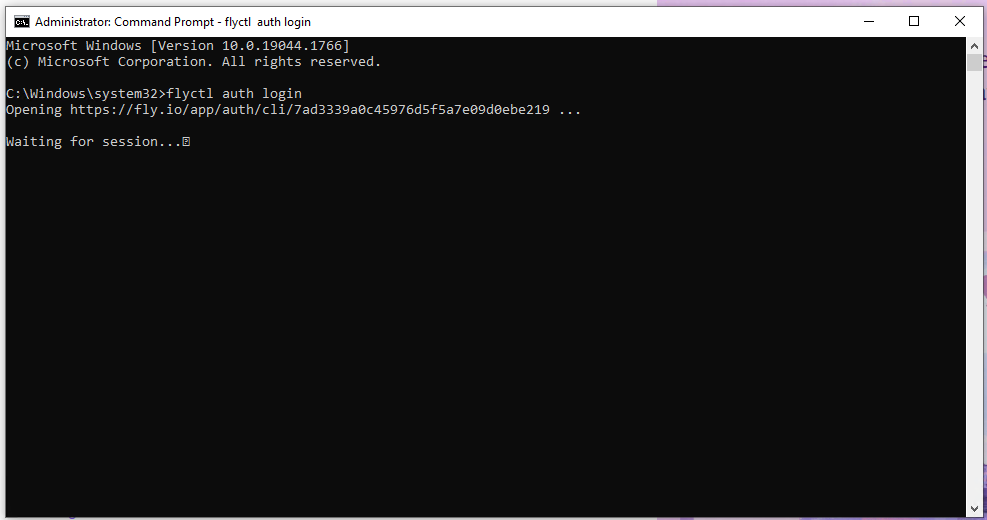
flyctl auth login
This should open a web browser and ask you to login - you will need to provide credit card details to proceed but actual shouldn't cost much if anything at all.

-
Now we need to move into the github directory we just created on the C:\ drive, to do that we can use this command
cd C:\github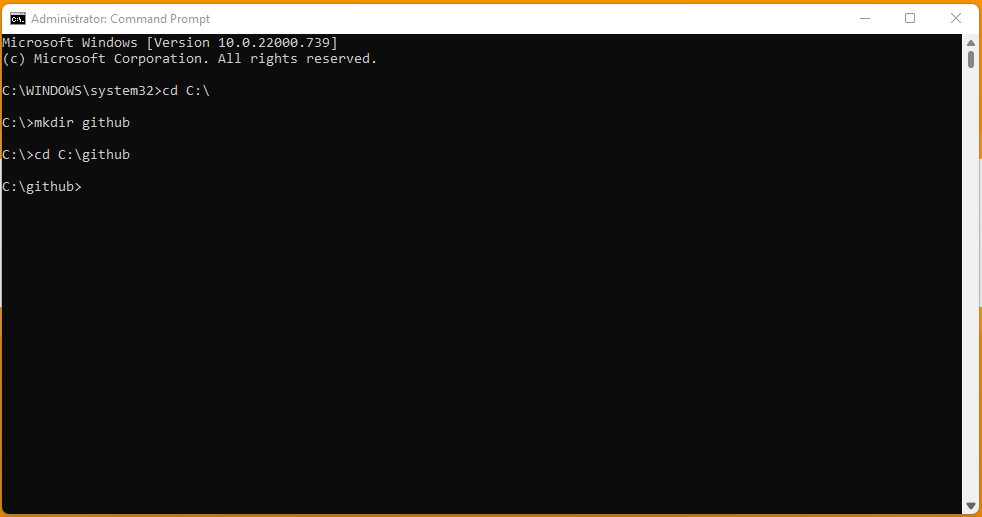
Note: CD means change directory
-
Now run this command
git clone https://github.com/actualbudget/actual-server.git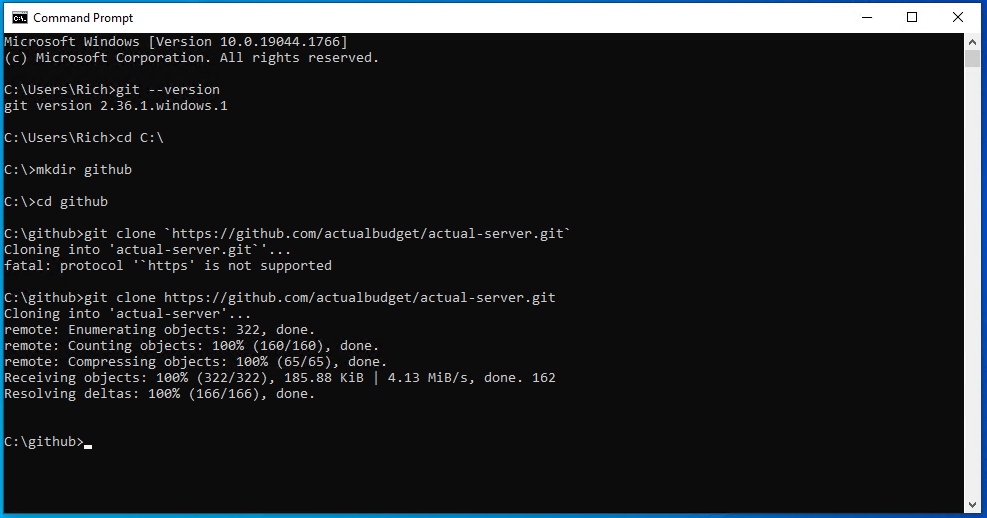
This will pull down the latest files for actual-server from the git hub repository to our local machine.
-
Then we need to move into that folder, to do that use this command
cd actual-server
Let's check to make sure we are in the correct place
dir
You should see a list of files, one of them being
fly.template.toml. If you don't see them go back to step 6 -
Copy
fly.template.tomlthat is in the folder called actual-server within C:\GitHub and copy it back into the same directory with the namefly.tomlcopy fly.template.toml fly.toml
-
Open the fly.toml file in notepad or a text editor of your choice like Visual Studio Code
notepad fly.toml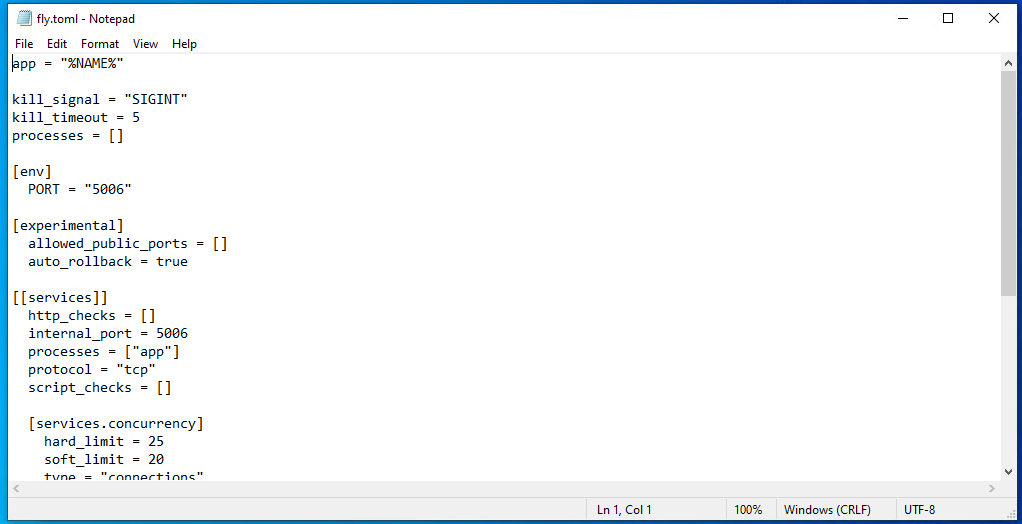
On line 1 change
app = "%NAME%"to something of your choosing likeapp = "Actual"and save the file
-
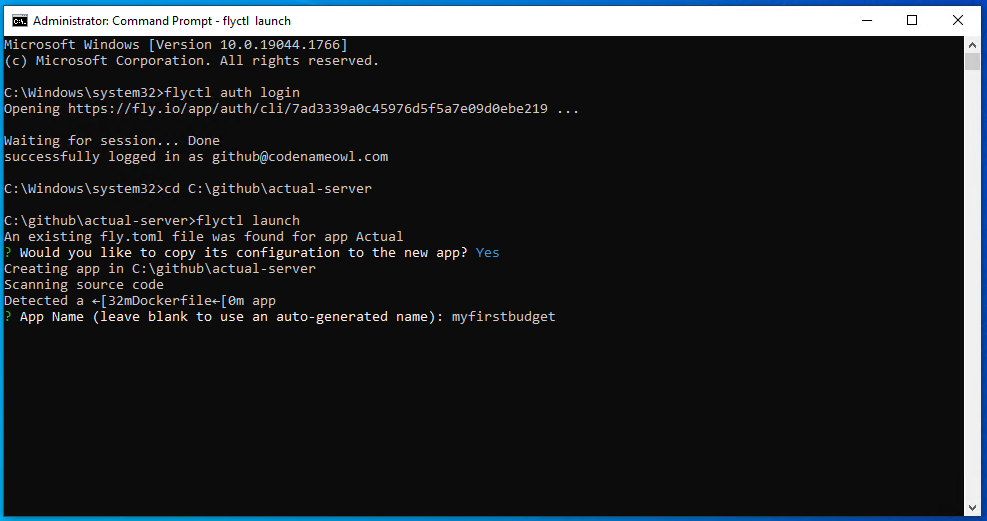
Go back to the command prompt and run
flyctl launch -
You will see a message that says
An existing fly.toml file was found for app Actual Budget ? Would you like to copy its configuration to the new app? (y/N)Type Y and hit enter

-
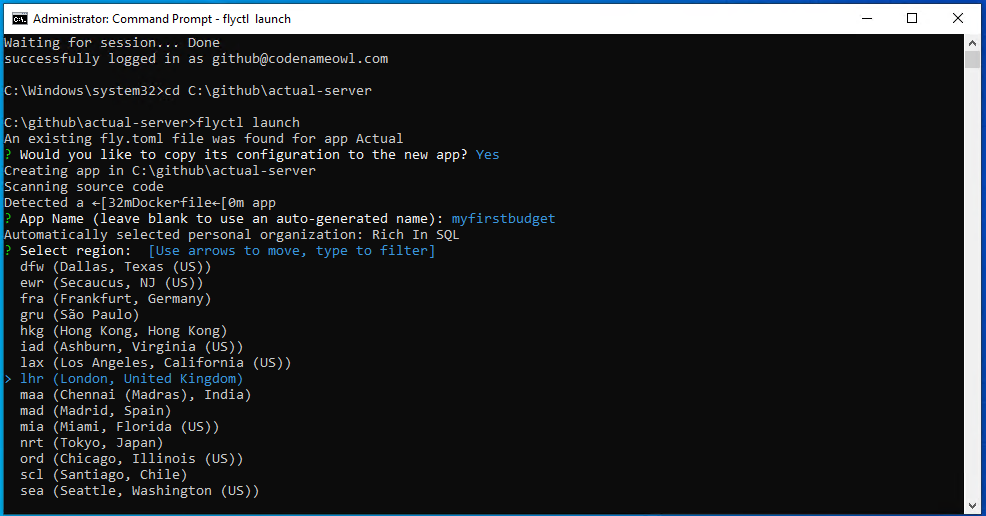
It asked me to give my application a name, I just left it blank and it picked one for me. I did this because no matter what I typed it errored.
-
Select your location using the up/down arrow keys when prompted:

-
When prompted with
? Would you like to setup a Postgresql database now? (y/N)Type N and press enter:

-
When prompted with
? Would you like to deploy now? (y/N)Type Y and press enter:
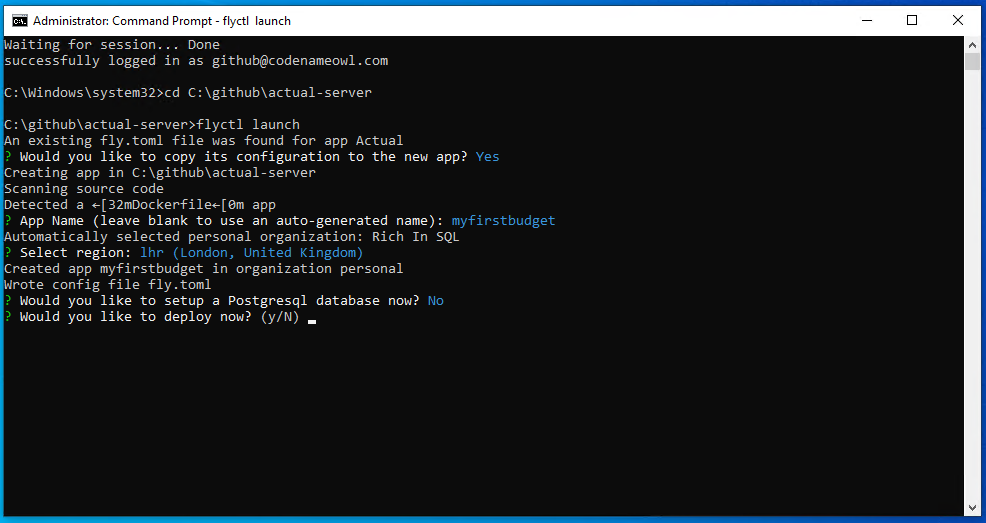
The application should begin deploying.

-
If you get a message about Windows Firewall, click 'Allow Access'






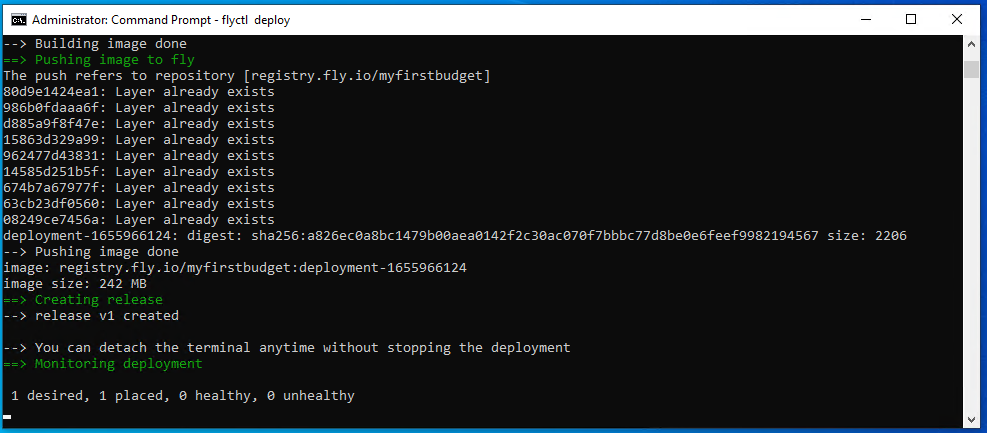
When complete you should see something like this:

Persisting the data in Fly
When we update Actual, if we don't persist the data it will be erased each time we come to update.
-
Run the following command
flyctl volumes create actual_data --region lhrThis will create a volume in the london region. Replace
lhrwith another region code if desired.
-
You should then get a message to say it was successful

-
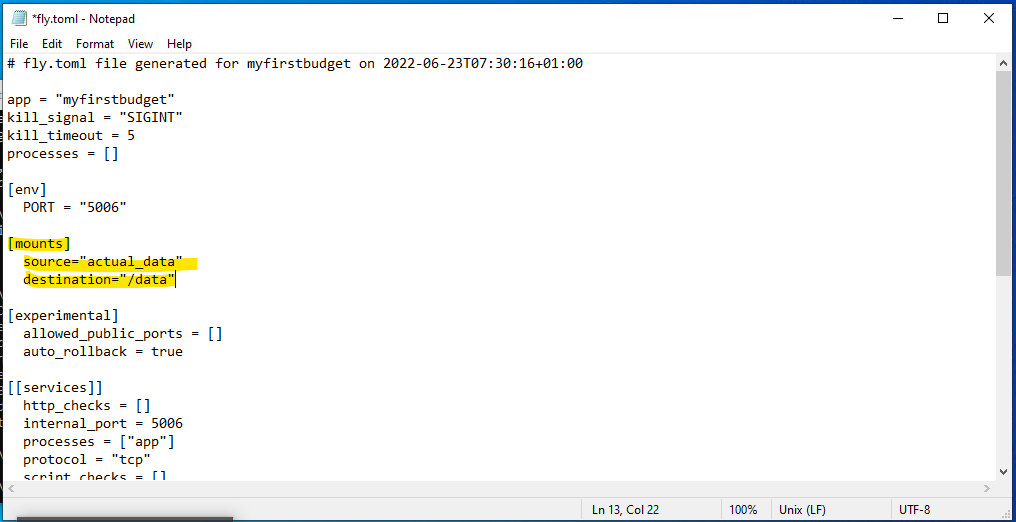
Open up
fly.tomlin notepad - you can do this from the command linenotepad fly.toml -
Add the following to the file
[mounts]
    source="actual_data"
    destination="/data"
If you created a volume with a different name, put that in the source. Save the file.

-
Now from the command prompt run
flyctl deploy
Your application should be re-deployed with the updated configuration




If all went well, you should now be able to see your volume from the fly.io dashboard.

Configuring Actual
Now everything is setup and configured, you should now be able to navigate to Actual using the URL provided by Fly in the dashboard.
-
To find that open https://fly.io/dashboard in a browser and click the application you created, in my case myfirstbudget, it might have a really random name if you left it blank a few steps ago

-
Once you are in there, you should see Hostname section under Application Information - click the link
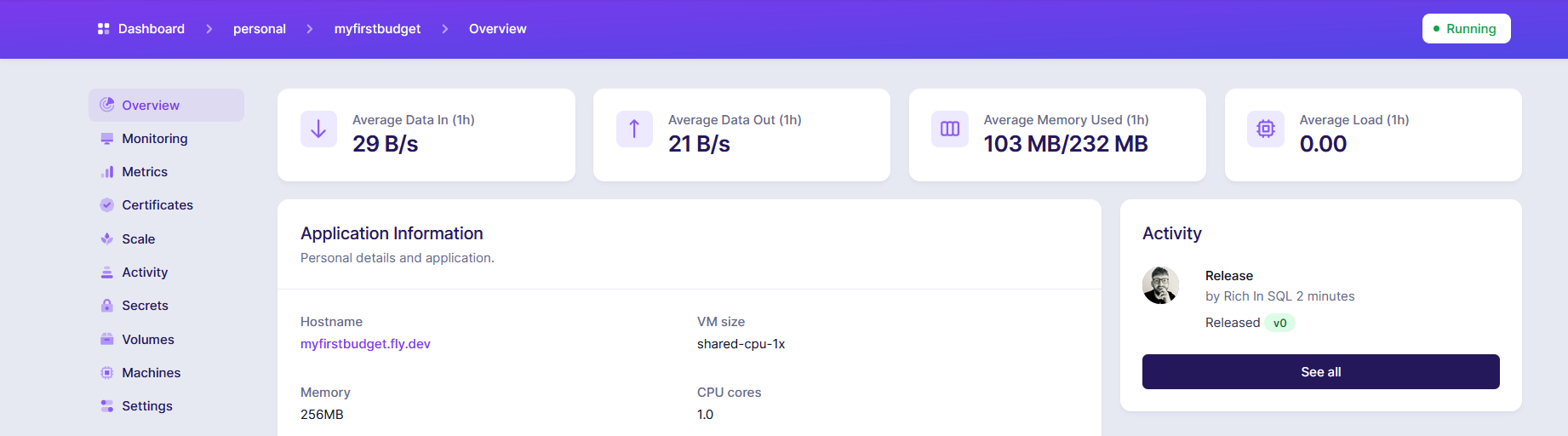
https://myfirstbudget.fly.devThis will now open Actual so we can start configuring it.
-
You should then see this screen

Click the 'Use this domain' link

-
Set a password - remember this, you will need it in the future.

-
If everything went well you should then be taken to your very first budget.


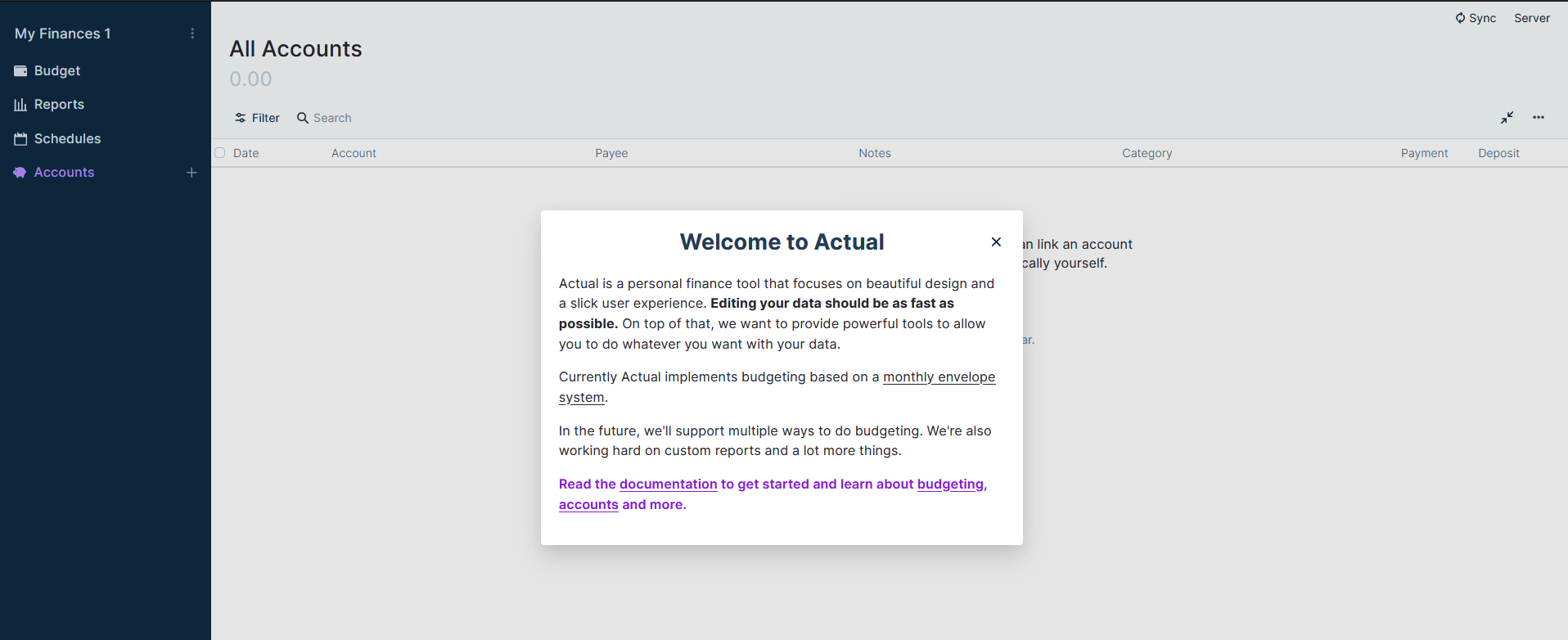
Actual is now up and running. Congratulations!
Exporting Data From Actual
Note this only applies to Actual Web
You can export your data from Actual at any time, to do this, login to your budget and click the three dots

Select Settings

Scroll down to the Export section and click Export Data

Save the file somewhere on your computer - that is it done.
Importing Data Into Actual
If you previously followed the above steps and have an Actual zip export, you can now import that using the web version of Actual.
To do this, login to your budget, then in the top right corner click Server

Then select Logout

Log back into your instance of Actual

From the next screen select Import File

Select Actual and then locate your Zip file, this will then import what you previously exported into Actual.

That is it - be careful though, importing might not create a new file (I haven't tested that bit)
Updating Actual
IMPORTANT: Before starting this step, backup your budget! You can find out how to do that here. Failure to do this may result in budget loss.
This section focuses on updating the actual-server
Press the start menu or windows key on your keyboard and type cmd

when command prompt appears in the search results, right click it and run it as Administrator

Navigate to the C:\ drive using this command
cd C:\

Assuming you followed this guide before, navigate to the github directory you created to clone actual and then into the actual-server directory
cd github\actual-server

We now need to clone the latest changes made to the actual-server repo, to do this, run the following command from your command prompt:
git pull origin master
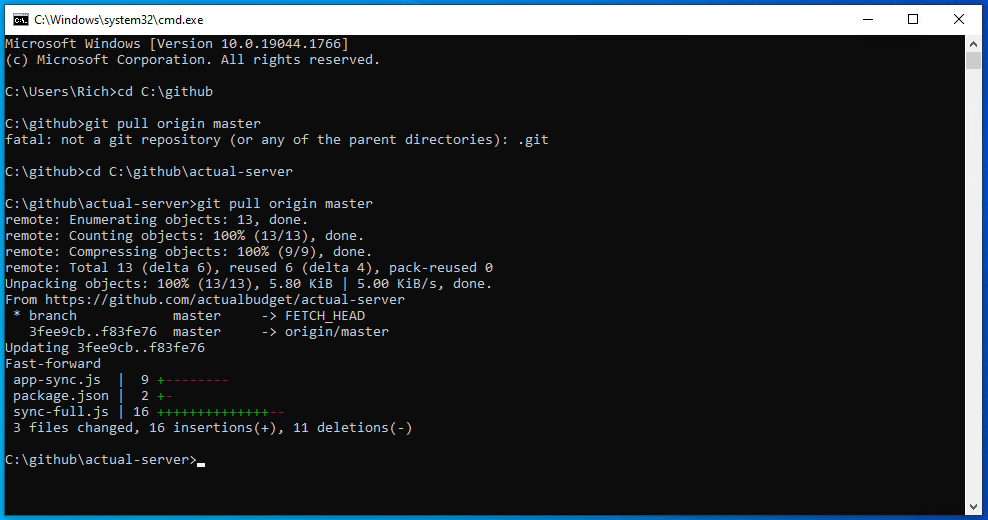
Once that is done, run the deployment command to push your changes to fly.
flyctl deploy.
Once that is complete, delete your browsing history and web files.
Load up your budget and if required restore your backup and that is Actual Server updated.
Frequent Issues
If you're stuck or find a step unclear, the community in Discord may be able to assist you.