Deploying Actual on fly.io with a container image
Deploying
fly.io allows running the application directly and provides a free tier. You should be comfortable with using the command line to set it up though.
-
Install the
flyctlutility. -
Create an account. You can also create your account by running
fly auth signupAlthough you are required to enter payment details, the resources required to run Actual are within the free tier, and you shouldn't be charged.
-
Copy
fly.template.tomlto an empty local directory, and rename the filefly.toml.- Optional: Open
fly.tomland customize the app name on the first line of the file. e.g.:App names must be globally unique, so there is a meaningful probability that your chosen name is unavailable. Later steps allow the fly.io system to generate a unique name for you.app = "actual-budget"
- Optional: Open
-
Open
fly.tomlin a text editor and add the following:[mounts] source="actual_data" destination="/data" -
Create your app using the following command:
fly launch --image jlongster/actual-server:latest- Select
Yeswhen prompted to copy existing configuration.? Would you like to copy its configuration to the new app? (y/N) y - Press
enterto accept an auto-generated app name. You may enter a name if you wish, but it must be globally unique across all fly apps.? App Name (leave blank to use an auto-generated name): - Select a deployment region. The closest region should be highlighted by default, so you may
simply hit
enterif you do not have specific needs.? Select region: [Use arrows to move, type to filter] ams (Amsterdam, Netherlands) ... - Select
Nowhen prompted to create a Postgres database.? Would you like to setup a Postgresql database now? (y/N) n - Select
Nowhen prompted to deploy now.? Would you like to deploy now? (y/N) n
- Select
-
Continue to the Persisting server data section.
Persisting server data
If you choose not to set up a persistent volume, each deployment or restart will wipe away all the data on the server. You would need to intialize (also known and listed as 'bootstrapping' in the user interface) the the instance again and upload your files. To avoid that, let's move the data somewhere that persists. With fly.io we can create a volume.
-
In the directory containing your
fly.tomlconfiguration, run this command:fly volumes create actual_data -
Select a deployment region. The closest region should be highlighted by default, so you may simply hit
enterif you do not have specific needs.Fly volumes are encrypted at rest by default. See the fly.io docs if you wish to disable this, though we do not recommend doing so.
-
If you have not already added a mount to your fly config, follow the instructions above to do so.
-
Deploy your application:
fly deploy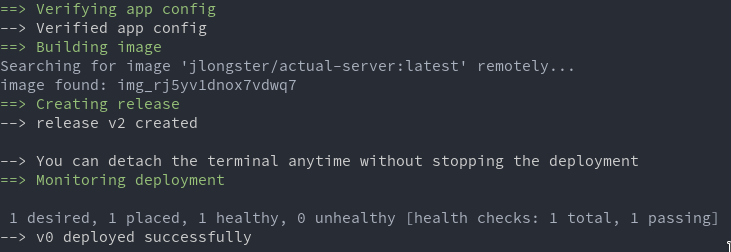
You should have a running app now! Actual will check if the /data¹ directory exists and use it
automatically. You can open the app using
fly apps open
Updating Actual
Whenever you want to update Actual, return to the directory containing your fly.toml file and run
fly deploy
If you wish to change the image source (eg to run an unstable build, or a specific tag), run
fly deploy --image [desired image tag]
with [desired image tag] replaced with your desired tag.
¹ You can also configure the data dir with the ACTUAL_USER_FILES environment
variable.
Frequent Issues
-
Q. I have deployed actual to Fly.io but I am being charged, why is this?
A. While we wouldn’t know for certain without seeing your configuration, it is likely that during deployment you created a Postgres database. Actual doesn’t need this so you can just delete it and charges should then stop. If you're unsure, the community in Discord may be able to assist you.
Official Images
These images are published based on the master branch of the actual-server repo.
- Docker hub: jlongster/actual-server
- Github Container Registry: ghcr.io/actualbudget/actual-server