 79c15ea9d5
Adds a user-controlled "Show next code" toggle in authenticator
settings. When enabled, the upcoming TOTP code is rendered below the
current code for each TOTP item in the list, letting users see incoming
codes without waiting for the rollover. HOTP items are excluded since
next-code generation requires advancing the counter.

Bitwarden Authenticator Android App

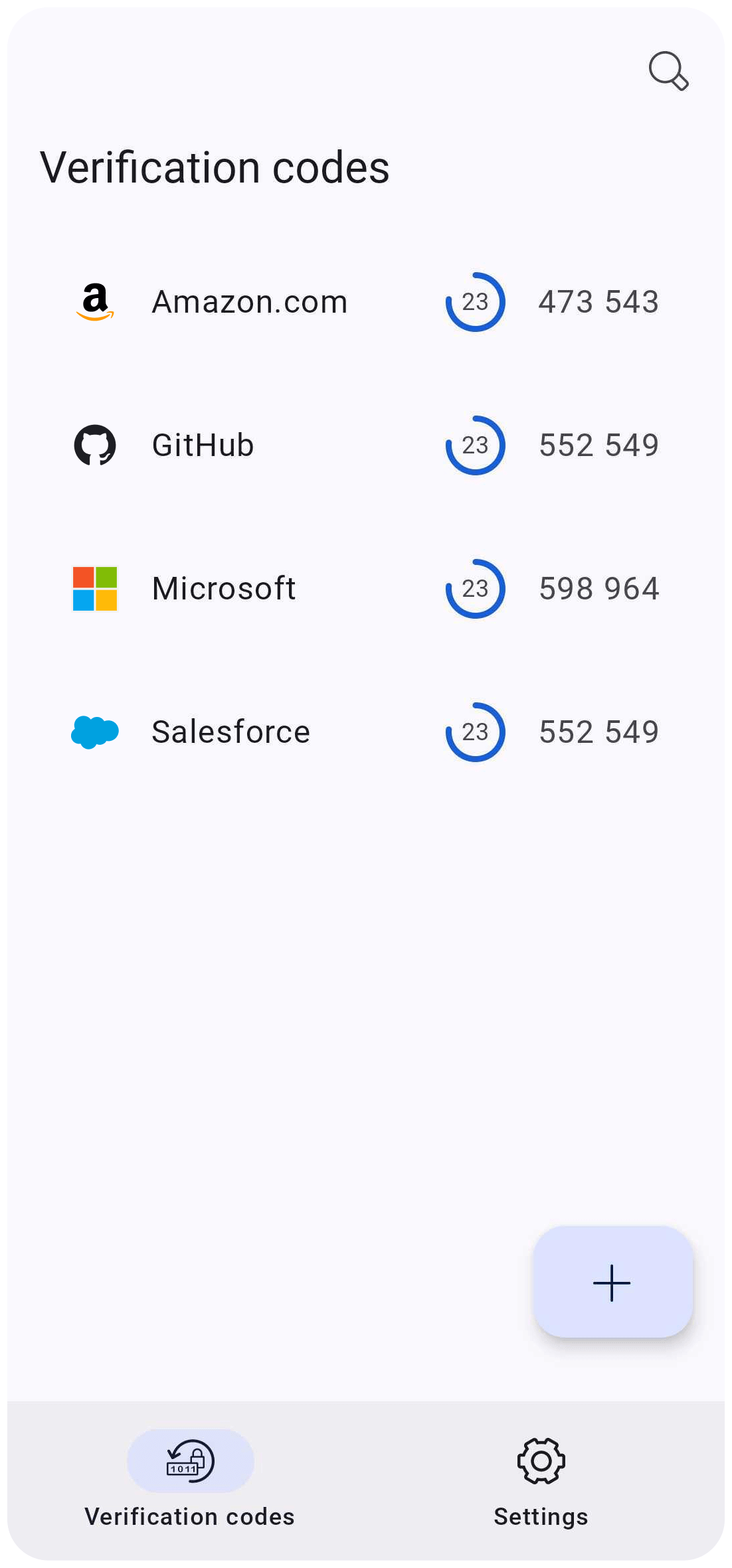
Bitwarden Authenticator allows you easily store and generate two-factor authentication codes on your device. The Bitwarden Authenticator Android application is written in Kotlin.
Compatibility
- Minimum SDK: 28 (Android 9)
- Target SDK: 36 (Android 16)
- Device Types Supported: Phone and Tablet
- Orientations Supported: Portrait and Landscape
Setup
-
Clone the repository:
$ git clone https://github.com/bitwarden/authenticator-android -
Create a
user.propertiesfile in the root directory of the project and add the following properties:gitHubToken: A "classic" Github Personal Access Token (PAT) with theread:packagesscope (ex:gitHubToken=gph_xx...xx). These can be generated by going to the Github tokens page. See the Github Packages user documentation concerning authentication for more details.
-
Setup the code style formatter:
All code must follow the guidelines described in the Code Style Guidelines document. To aid in adhering to these rules, all contributors should apply
docs/bitwarden-style.xmlas their code style scheme. In IntelliJ / Android Studio:- Navigate to
Preferences > Editor > Code Style. - Hit the
Managebutton next toScheme. - Select
Import. - Find the
bitwarden-style.xmlfile in the project'sdocs/directory. - Import "from"
BitwardenStyle"to"BitwardenStyle. - Hit
ApplyandOKto save the changes and exit Preferences.
Note that in some cases you may need to restart Android Studio for the changes to take effect.
All code should be formatted before submitting a pull request. This can be done manually but it can also be helpful to create a macro with a custom keyboard binding to auto-format when saving. In Android Studio on OS X:
- Select
Edit > Macros > Start Macro Recording - Select
Code > Optimize Imports - Select
Code > Reformat Code - Select
File > Save All - Select
Edit > Macros > Stop Macro Recording
This can then be mapped to a set of keys by navigating to
Android Studio > Preferencesand editing the macro underKeymap(ex : shift + command + s).Please avoid mixing formatting and logical changes in the same commit/PR. When possible, fix any large formatting issues in a separate PR before opening one to make logical changes to the same code. This helps others focus on the meaningful code changes when reviewing the code.
- Navigate to
Contribute
Code contributions are welcome! Please commit any pull requests against the main branch. Learn more about how to contribute by reading the Contributing Guidelines. Check out the Contributing Documentation for how to get started with your first contribution.
Security audits and feedback are welcome. Please open an issue or email us privately if the report is sensitive in nature. You can read our security policy in the SECURITY.md file.